Posts

How to support multiple languages in WPF
Image
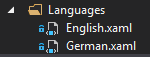
If you are developing many solutions for many costomer, one day one of them will require a multilingual WPF-solution. So there is the question: how to make a WPF form multilingual? At first you need at least two languages that you want to support. You can add some other languages at the end very easy. First of all create a folder in your project and call it "Languages", to keep an overview. Once it is done you can create Resource Dictionaries in this folder. You can call them however you want, but make sure you can assign them to the language. You can use language codes (like "en-us") or you can call it like the language is called. At the end it can look like this:

Get the mail address from a FieldUserValue Client Side vs Server Side

In SharePoint are two ways to code by using an object model. The one way is the Client-Side Object Modell (CSOM) and the other side is the Server-Side Object Model (SSOM). At the first look they both look the same the only difference is how the objects are looking for example the is the 'Site'-object (client side) is called 'SPSite' on server side. A good way to demonstrate the difference is to get the mailaddress of a userfield. That sounds easy, but needs more lines that I thought at first. So let's say you got a SharePoint 2013 and want to read the mailaddress on client side. That would look like this: 1 2 3 4 5 6 7 8 9 // get the userfield of the item e.q. Author FieldUserValue Author = (FieldUserValue)currentItem[ "Author" ]; // ask the web to find a user with the id in the field (only works if the user visited the site) var user = web.SiteUsers.GetById(Author.LookupId); // load the data with the context context.Load(user); context.ExecuteQue...

Get data of all users on the SharePoint with CSOM C#

Sometimes you need to get information abot some user. To do so you need the SiteUserInfoList. This list contains data about all user that visited the SharePoint site. This is how you can read the list with C# and CSOM: 1 2 3 4 5 6 7 8 9 10 11 12 13 14 15 16 // build the SharePoint connection ClientContext clientContext = new ClientContext( "http://your site/" ); Web web = clientContext.Web; // get the userinfolist List siteUserInfoList = web.SiteUserInfoList; // build a query CamlQuery query = new CamlQuery(); query.ViewXml = "" ; // get the data IEnumerable<ListItem> itemColl = clientContext.LoadQuery(siteUserInfoList.GetItems(query)); clientContext.ExecuteQuery(); // work with the userinformations foreach ( var item in itemColl) { Console.WriteLine( "ID:{0} Email:{1} Title:{2}" , item.Id, item[ "EMail" ], item[ "Title" ]); }

SharePoint 2013 apps - communicate with host SharePoint without using SP.RequestExecutor

In a previous post  I wrote an app to read and write data from the Host-SharePoint. To do this I made use of the SP.RequestExecutor. This class is used to get the permissions for reading and writing data into the Host-SharePoint. But there is a way to skip the authentification and using the URL directly. This makes your code much more beautiful and easy to read. All you need to do is to call a function (_spPageContextInfo.siteAbsoluteUrl). That function returns an URL and makes it possible to communicate with the SharePoint per JSOM and REST.  I also tried to call the URL with the function and make a context with another URL and this does not work. Even the Host-URL does not work. Another disgusting point is that the URL, which is returned by the function, is that it not contains the URL of the app and not of the host. It is a 'hybrid' that begins like the app URL, but ends earlier. 1 2 3 4 var url = _spPageContextInfo.siteAbsoluteUrl; context = new SP.ClientContext(u...

Open Edit View of SharePoint Pages without the "Edit Page" button

In some cases the "Edit Page" button is not visible too make sure no one makes some unallowed changes. This is a nice security hack, but what if you need to edit the page? There is an easy way to open the page in edit mode and that is the URL. Add one of the following extensions to your URL, right after the '.aspx'. To change the public view of the page add this: ?PageView=Shared&ToolPaneView=2 example: http://sp/Pages/default.aspx ?PageView=Shared&ToolPaneView=2 To change a personal view of the page add this (only if it is enabled): ?PageView=Personal&ToolPaneView=2 example: http://sp/Pages/default.aspx ?PageView=Personal&ToolPaneView=2

Read an Exchange inbox with WebServices and C#

In some situations you will need to read mails from mailserver. One of those servers is the Exchange. Reading it is pretty easy with the WebServices. At first you need to add the reference to Microsoft.Exchange.WebServices. After that you can begin to code. All you need are two functions. One to build a connection to the Exchange and the other one to find folder and read them.

get SharePoint Farm ID with PowerShell

If you need to get the ID of your SharePoint Farm, you need to use PowerShell. Getting it is easy you just need to enter the following two commands and the ID will appear. $SPFarm = Get-spfarm $SPFarm.ID